Mastering the SpeedX Cockpit: Your Command Center for Every Adventure
The Cockpit at a Glance
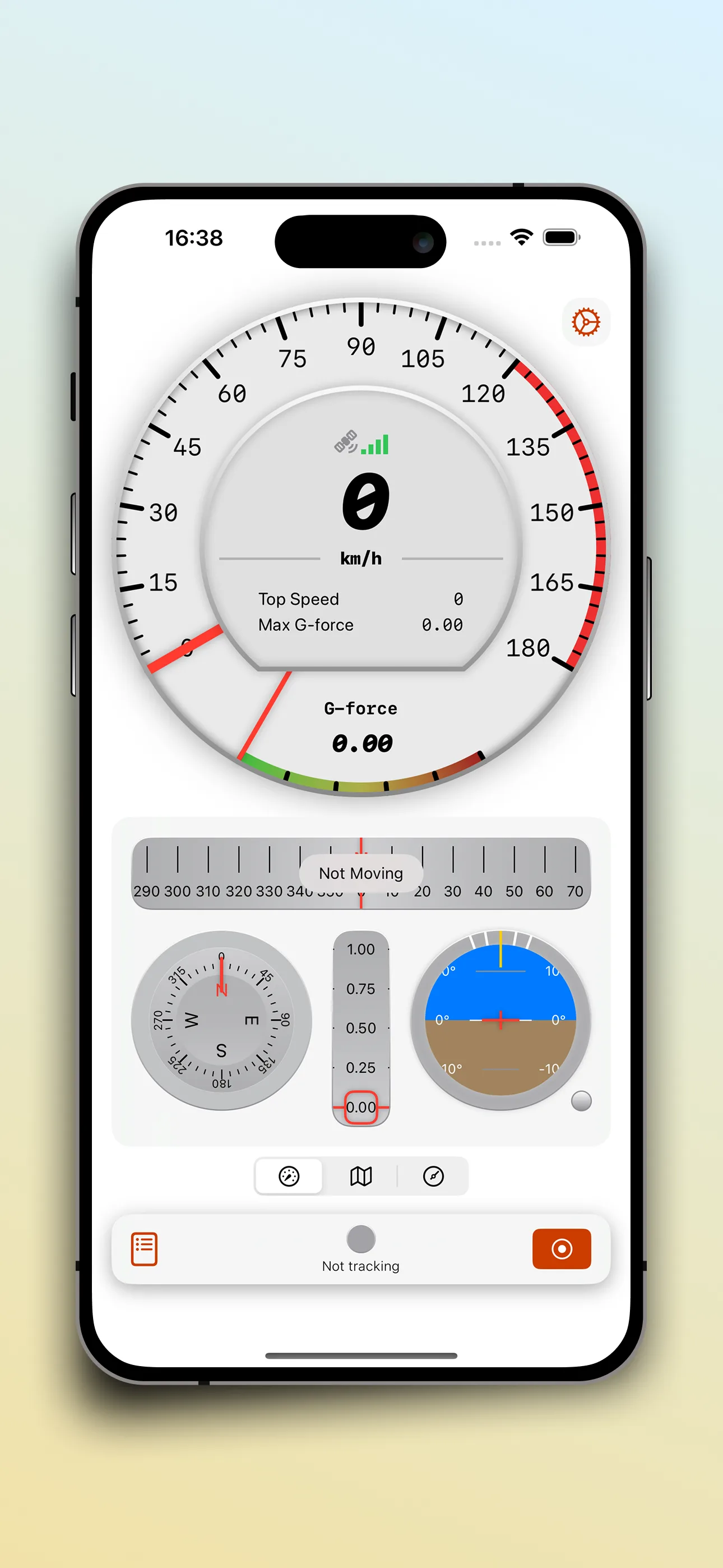
Open SpeedX and you're greeted by the Cockpit — a meticulously designed instrument panel that consolidates every critical metric into one glanceable view. It's the heart of the app, whether you're cycling up a mountain pass, monitoring your pace on a morning run, or checking your speed on a road trip.
The Cockpit is divided into three functional zones, each engineered for a specific purpose.
Zone 1: The Speedometer — Your Primary Readout
At the center of the Cockpit sits a large, circular speedometer gauge. The current speed is displayed in bold digits — the largest text on screen — so you can read it at a glance, even with your phone mounted on handlebars or a dashboard.
Surrounding the numeric readout is an arc gauge that fills with orange as your speed increases. This visual indicator gives you an instant sense of your pace without needing to process the number. A quick glance tells you whether you're cruising, pushing hard, or approaching your limit.
Supported speed units:
- km/h — Standard for most countries
- mph — US and UK
- knots — Nautical navigation
- m/s — Scientific and sports contexts
- Pace (min/km, min/mile) — Essential for runners
Zone 2: The Secondary Metrics Grid
Below the speedometer, a grid of four compact cards displays your secondary telemetry. Each card updates in real time:
Elapsed Time — A precise stopwatch tracking your session duration, displayed in HH:MM:SS format. Runs continuously from the moment you tap Start Session until you stop, even if your phone is locked.
Total Distance — Cumulative distance traveled during your session. SpeedX calculates this using GPS positioning and the Haversine formula for accuracy that accounts for Earth's curvature. Available in meters, kilometers, feet, miles, and nautical miles.
Altitude (Baro) — Your current elevation, derived from your device's barometric pressure sensor combined with GPS altitude for sub-meter vertical precision. The display shows meters or feet, depending on your preference.
G-Force Profile — Real-time acceleration monitoring displayed as a G-force value. The gauge shows both longitudinal forces (acceleration and braking) and lateral forces (cornering). Below the main value, pitch and roll indicators show your phone's spatial orientation — useful for aviation, off-road driving, and understanding terrain steepness.
Zone 3: The GPS & Navigation Panel
On the right side of the Cockpit (or below on smaller screens), a dark panel displays your precise GPS coordinates — latitude and longitude to six decimal places — along with the current atmospheric pressure in atmospheres.
Beneath the coordinates, a live route map plots your GPS track in real time. As you move, SpeedX draws your path as an orange line, creating a visual record of your journey. The map is framed by route context — start point, current position marker (a pulsing orange dot), and the trail you've covered so far.
The Control Bar
At the bottom of the Cockpit, the control bar gives you session management:
- Start Session — Begins recording. The button pulses green to indicate the sensor stream is armed.
- Pause — Temporarily halts recording while preserving your session data in a buffer. Tap again to resume.
- Reset — Clears the current session and returns all readings to zero.
- Save & Compile — Finalizes your session, stores it to the History Log, and generates a trip summary card.
Why the Cockpit Works Offline
Every instrument on this screen is powered by your device's internal hardware sensors — GPS receiver, barometric pressure sensor, accelerometer, and gyroscope. SpeedX reads these sensors directly, meaning the entire Cockpit functions with zero internet connectivity. No cell signal needed. No data plan required.
This is what makes SpeedX genuinely useful in the places adventures actually happen — mountain passes, remote trails, coastal roads, and deep wilderness.
Getting the Most from the Cockpit
- Mount your phone securely — A handlebar mount, dashboard cradle, or armband keeps the screen visible and your hands free
- Set your preferred units before you start — Speed, distance, and altitude each have independent unit settings
- Use voice announcements — Enable audio speed alerts so you can keep your eyes on the road or trail
- Review before saving — After your session, scroll through the History Log to review your stats before sharing
The Cockpit is designed to be the only screen you need during an activity. Master it, and your phone becomes one of the most capable adventure instruments you own.